NuMaker-CM3034HS8
| 1. | Install the preferred toolchain. Please make sure at least one of the toolchains has been installed. | ||||
| - | KEIL MDK Nuvoton edition – Full Cortex®-M | ||||
| - | Visual Studio Code (VS Code) | ||||
| 2. | Download and install the latest Nuvoton Nu-Link Driver. | ||||
| - | Download and install Nu-Link_Keil_Driver when using Keil MDK. | ||||
| - | Please refer to the VSCode Quick Start Guide.pdf when using VS Code. | ||||
| 3. | Download and unzip the Board Support Package (BSP). | ||||
| 4. | Hardware Setup | ||||
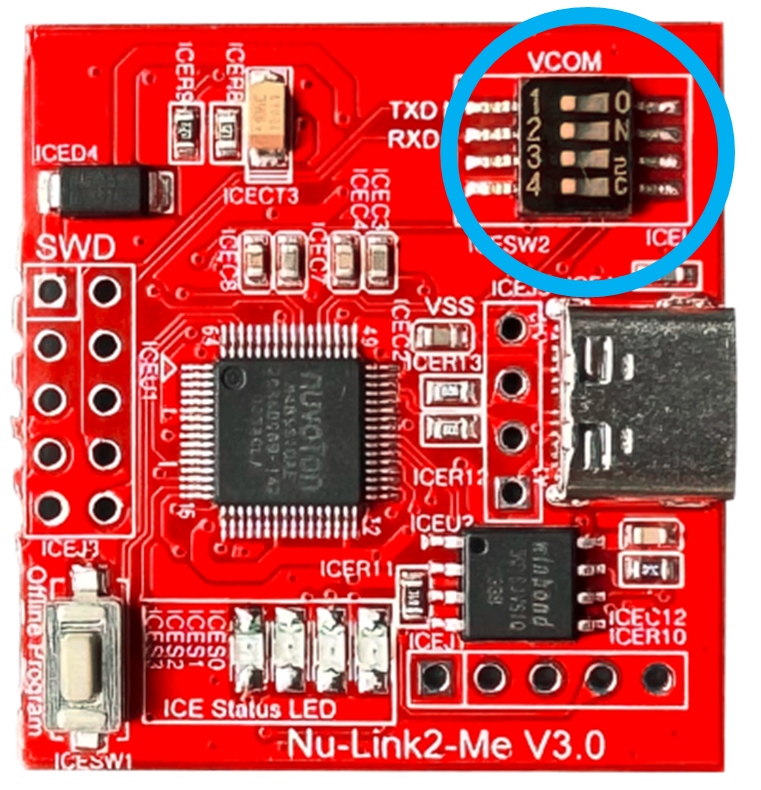
| (1) Open the virtual COM (VCOM) function by changing Nu-Link2-Me VCOM Switch No. 1 and 2 to “ON”. | |||||
|
|
|||||
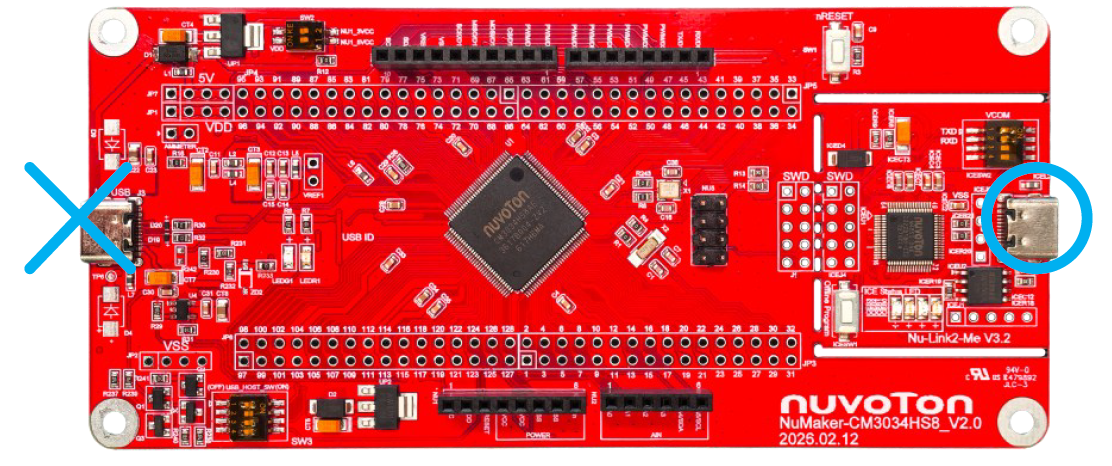
| (2) Connect the ICE USB connector to the PC USB port through a USB cable. | |||||
|
|
|||||
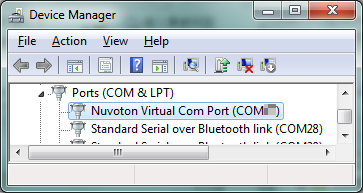
| (3) Find the “Nuvoton Virtual COM Port” on the Device Manager. | |||||
|
|
|||||
| 5. | Use the “Template” project as an example. The project can be found under the BSP folder. | ||||
| - | CM3031H-CM3031G-BSP | ||||
| - | SampleCode | ||||
| - | Template | ||||
| - | Keil | ||||
| - | VSCode | ||||
| 6. | Open and execute the project under the toolchain. For detail setting, please refer to the NuMaker-CM3034HS8 User Manual. | ||||
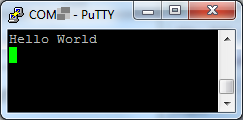
| 7. | User can see the result in the terminal window on PC. | ||||
|
Resources User Manual | Microcontrollers | Software Development Tool | Driver (BSP) | Programmer | Nuvoton Official Forum | Nuvoton eStore |
|||||